SPARSH pension life certificate: submit online and check status
For the pension to keep coming, proof that the pensioner is alive has to be given once a year — that is the life certificate. It used to mean queueing at a bank or an office. It can now be done from home, on a phone, using face verification — the Digital Life Certificate (DLC), through the government's Jeevan Pramaan system.
Below is that method step by step, with the places people actually get stuck. The whole journey, at a glance:
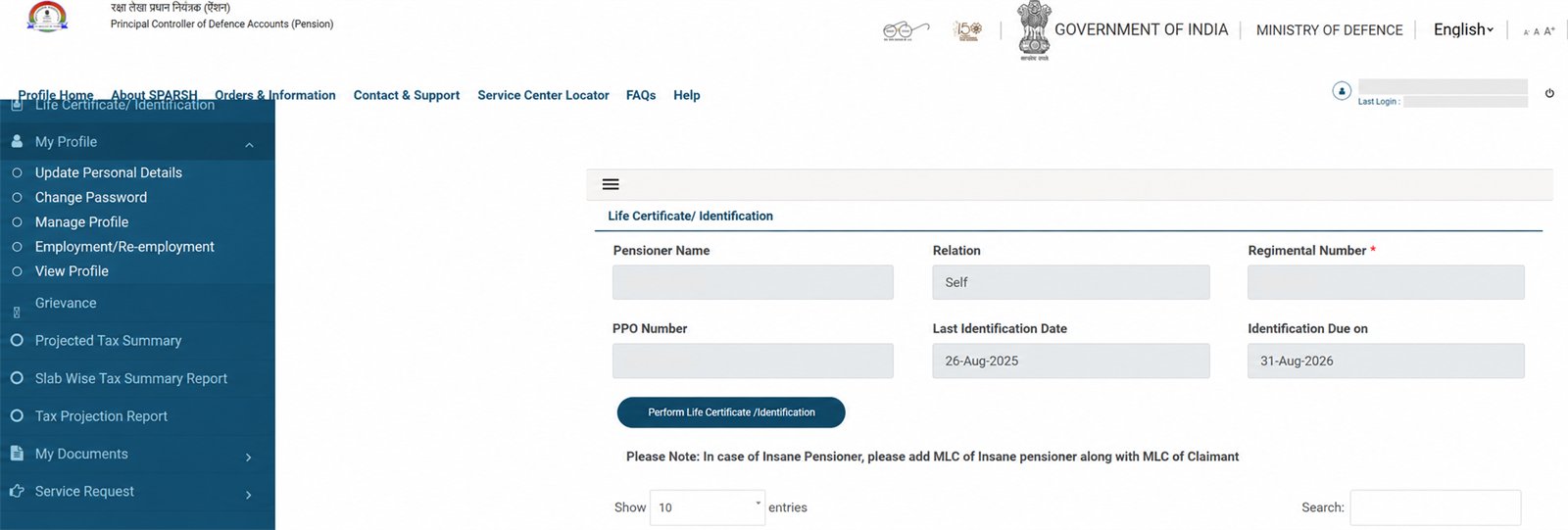
- 1Last Identification Date: when the latest accepted identification was recorded.
- 2Identification Due on: complete the next identification by this date; do not rely only on an SMS reminder.
- 3Perform Life Certificate/Identification: starts SPARSH's MLC/DLC workflow. Click only when ready to complete it.
How to check SPARSH life certificate status
- Open the official SPARSH portal yourself and sign in.
- Open Life Certificate/Identification.
- Read Last Identification Date. If it shows the date of your latest completed identification, SPARSH has recorded it.
- Check Identification Due on as well and keep a screenshot for your record.
A Pramaan ID confirms that Jeevan Pramaan generated the certificate; it does not by itself prove that SPARSH has recorded the identification. If the old identification date remains after submission, recheck the pension disbursing agency selected in Jeevan Pramaan and raise the issue through the official SPARSH grievance route with the Pramaan ID.
- 1 Papers ready Aadhaar-linked mobile, PPO number, bank account
- 2 Two apps, in order First AadhaarFaceRD, then Jeevan Pramaan
- 3 Fill the details Aadhaar, mobile, PPO number, disbursing agency
- 4 Face scan Good light on the face, blink when asked
- 5 Pramaan ID arrives Note it down — that is your proof of submission
An illustration of the flow — the app's own screens change from time to time, so follow the written steps below for the details.
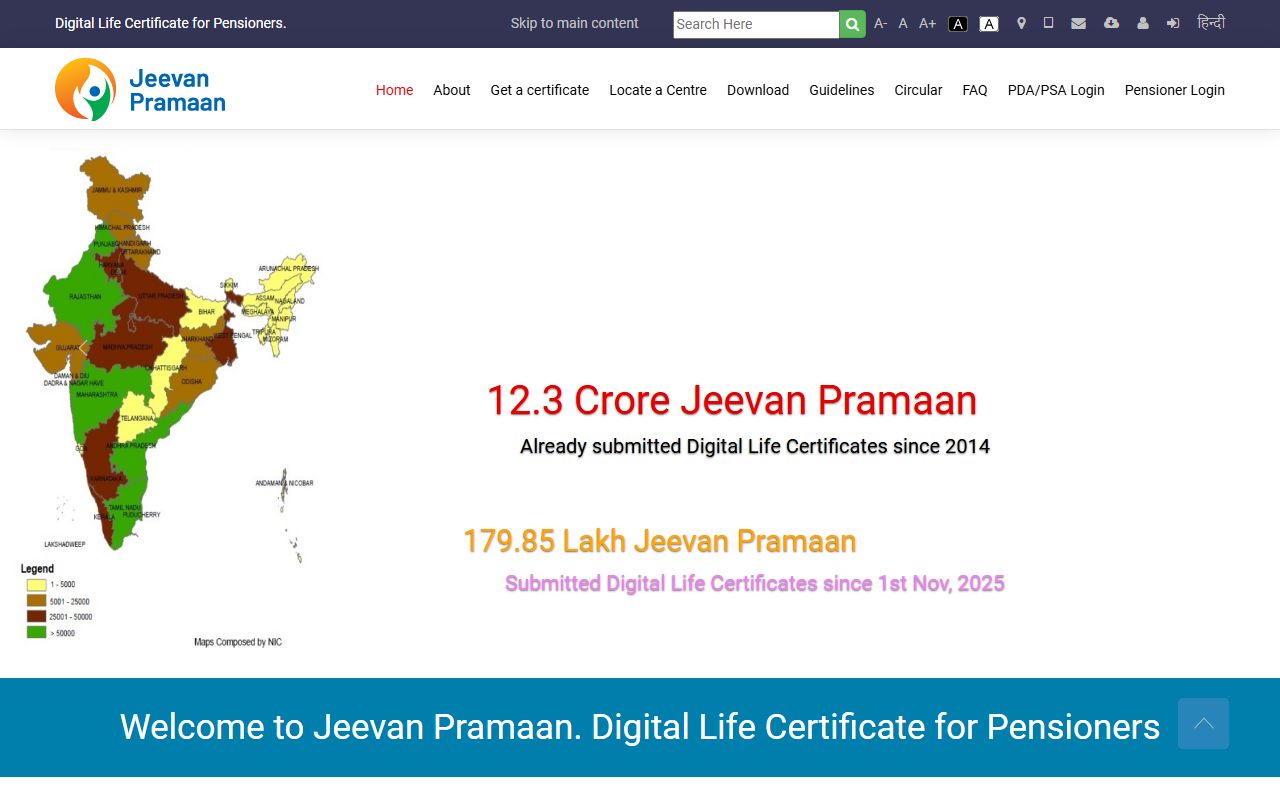
- 1Download: use the official download area for the approved software/app instructions.
- 2Guidelines: check current device, face-authentication and certificate instructions before starting.
- 3Pensioner Login: use the official page to access pensioner-facing certificate services; never follow a message link.
- ☐ The mobile number linked to Aadhaar — the OTP comes there; if it is not linked, get it linked at an Aadhaar centre first
- ☐ PPO number — written on the Pension Payment Order
- ☐ The bank account number the pension goes into
- ☐ An Android phone with a reasonable camera, and internet
-
Install two apps — the order matters
From the Google Play Store, in this order:
- AadhaarFaceRD — check that the publisher is the Unique Identification Authority of India (UIDAI)
- Jeevan Pramaan — the publisher should be National Informatics Centre (NIC)
⚠ This is where people get stuck Fake apps with similar names show up in search. Read the publisher name before installing. Also, once installed, AadhaarFaceRD will not open — it has no screen of its own. It works in the background; don't waste time trying to launch it.
-
Open Jeevan Pramaan and verify the "operator" first
What you will see: the app first asks for the Aadhaar of the person holding the phone — it calls them the Operator. If the pensioner is doing it themselves, they are also the operator; if a son or daughter is helping, they can be.
What to enter: Aadhaar number, mobile, OTP — then one face check.
-
Now enter the pensioner's details
What to enter: the pensioner's Aadhaar and mobile, OTP, then the pension details — which ministry (Defence), the disbursing agency, PPO number, account number.
⚠ This is where people get stuck Pick the wrong disbursing agency from the list and the certificate is generated but never reaches the pension system. Defence pensioners paid through SPARSH should choose the option naming SPARSH / Defence Accounts (PCDA). If unsure, check the disbursing authority named on your pension slip.
-
Face verification — light on your face
What you will see: the camera opens, asks you to place your face in the circle, and asks you to blink — it is checking for a live face, not a photograph.
⚠ This is where people get stuck With a window or a bulb behind you, your face goes dark and the check fails again and again. Sit facing the light, take off your glasses, and hold the phone level with your eyes.
-
Done — keep the Pramaan ID
What you get: a Pramaan ID by SMS. That is your receipt. The certificate PDF can be downloaded any time from jeevanpramaan.gov.in. For defence pensioners the certificate reaches SPARSH on its own — there is nothing further to submit.
If it does not work
- OTP not arriving — the mobile is not linked to Aadhaar. No app can fix that; the only route is an Aadhaar service centre.
- Face check keeps failing — face the light; update both apps from the Play Store; restart the phone once.
- The phone just won't cooperate — two other routes are equally valid: a nearby Common Service Centre (CSC) does this for a fee, and many banks offer a doorstep life certificate service — ask your branch.
- Certificate generated but pension still stopped — take the Pramaan ID and ask your pension disbursing authority or bank, in writing, whether it reached their records. In most cases the wrong disbursing agency at step 3 turns out to be the reason.
What happens next
Once the certificate is accepted, the pension continues without a break — no further paperwork, no trips. Next year it has to be done again; the app is the same, the details are remembered, and the second time it takes about ten minutes.
Questions and answers
When does this have to be submitted?
Once a year. Confirm your own due period with your pension disbursing authority and remember the month — ten minutes on time beats a scramble after the pension stops.
How do I know whether SPARSH accepted my life certificate?
Sign in to SPARSH, open Life Certificate/Identification, and check Last Identification Date. The updated date in SPARSH is the useful confirmation; a Pramaan ID alone confirms generation on Jeevan Pramaan.
Can the wife or family show their face instead of the pensioner?
No. The face checked has to be that of the person whose pension it is — that is the whole point of the proof. Anyone can operate the phone, though (the "operator" in step 2).
Will it work on an iPhone?
This system is built for Android. Any Android phone in the house will do — that is exactly what the operator route is for.
Aadhaar not linked in your SPARSH PPO, or no internet where you live? Then the digital route above will not work for you — and the paper one is still open. The life certificate form, its exact format and the eighteen authorities who may sign it are on their own page.
Where this information comes from
- jeevanpramaan.gov.in — the official Digital Life Certificate site (method and apps come from there)
- sparsh.defencepension.gov.in — the official defence pension portal
- The steps here were written against the real process; screens change, so they are re-checked before each annual cycle — the date is at the top.
Important note
This page explains a government process; it is not a government website. Always get apps and forms from the official source. Confirm your own case with the office that pays your pension.
Spotted a mistake? Tell us — corrections are recorded in public.
Related: Family Pension Calculator · Types of family pension