SPARSH pension slip download — how to get your monthly PDF
Log in at sparsh.defencepension.gov.in with your PPO-number-based user ID, then go to My Documents > Pension Slip. That is the complete official path. The details — the exact user ID, the first-time password, and what to do when things fail — are below.
The pension slip — many people search for it as the pension statement — is the monthly record of what was actually paid into your account. Banks ask for it for loans, it is needed at tax time, and it is the first thing to check when the credited amount looks wrong. Since defence pensions moved to SPARSH, it is no longer something to queue for: every pensioner can download it, free, from home.
Every step below comes from the official SPARSH FAQ — we have not invented any screen. Portal menus do get renamed from time to time; if a name differs slightly on the day you try, look for the nearest match, and tell us so this page stays true.
- ☐ PPO number — it is the base of your user ID
- ☐ Your registered mobile number — the first password and OTPs come there
- ☐ A phone or computer with internet and a normal browser
-
Open the official portal — check the address
Type sparsh.defencepension.gov.in yourself. There is exactly one official address; look-alike sites exist, so check the spelling before entering anything.
-
Work out your user ID — PPO number plus a suffix
Pensioner yourself: your PPO number with 01 added at the end. The official FAQ's own example: if the PPO number is 111111111, the user ID is 11111111101.
Family pensioner: the suffix is 02, 03, 04… — whatever your serial number is among the family members listed in the PPO.
-
First time, or never got the password? Use "Forgot Password"
If no SMS or email with credentials ever reached you, the official FAQ says: enter your user ID, click Forgot Password at the bottom of the login window, and a password will be sent to you. Log in with it and set your own password.
⚠ This is where people get stuck The password comes to the registered mobile/email — the one in the pension records. If your number changed and was never updated, the SMS goes nowhere. In that case use a SPARSH Service Centre (step 5) and get the mobile number corrected first.
-
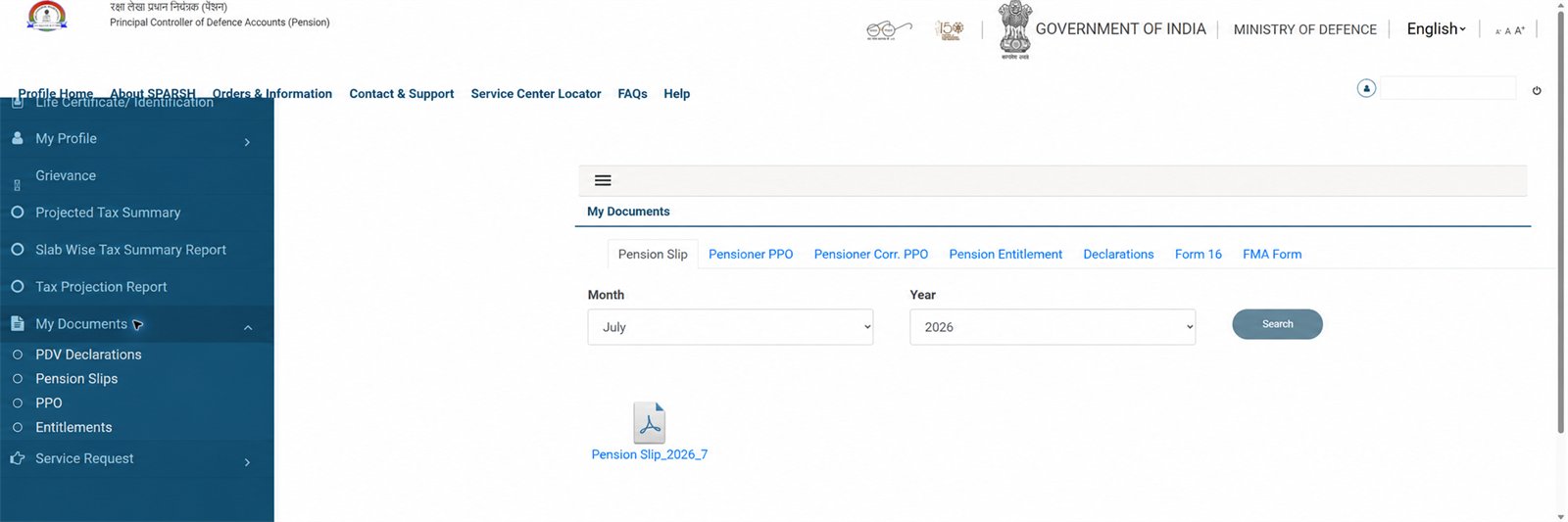
Go to My Documents → Pension Slip
After login, open the My Documents menu:
- My Documents > Pension Slip — the monthly slips, to view or download
- My Documents > Entitlements — the sanctioned amounts: basic pension, disability element, gratuity and other entitlements
- My Documents > PPO — your Pension Payment Order (separate guide here)
Save the PDF where you can find it again — one copy on the phone, one printed in your pension file is a good habit.
-
Can't manage it online? A Service Centre will do it, free
Every SPARSH service is also available at Service Centres, without any charges (the FAQ says so in exactly those words). To find one near you, the portal's own locator is at Contact & Support > SPARSH Near You > Service Center Locator. Carry your registered mobile — you verify yourself there by OTP. Working hours: 9:30 AM – 6:00 PM, Monday to Friday.
If the slip shows a wrong amount
- Payment lower than the PPO sanctions — log in and go to Grievances > Payment Related > Elements of Pension. That is the official complaint path, and it is also the one for missing Dearness Relief.
- An element you are entitled to is missing from the PPO itself — the path is Grievances > Payment Related > Elements Not Sanctioned in Pension.
- Wrong tax deduction — Grievances > Payment Related > Deduction. You can check the year's projected tax first at Services > Projected Tax Summary.
- Want to know what the pension should be before complaining? Run the numbers in two minutes: Service Pension Calculator · Family Pension Calculator.
Questions and answers
What is the user ID for SPARSH login?
Your PPO number with a suffix. A pensioner logging in for their own pension adds 01 — so PPO number 111111111 becomes user ID 11111111101. A family pensioner adds 02, 03, 04 and so on, matching their serial number in the PPO. This is the official SPARSH FAQ's own rule and example.
Is there any charge for downloading the pension slip?
No. The official SPARSH FAQ states that all services available on SPARSH can be availed through the Pensioner Portal as well as Service Centres without any charges. Anyone demanding money for a pension slip is not part of the official process.
What is the difference between the pension slip and the PPO?
The PPO (Pension Payment Order) is the sanction — the order that says what pension you are entitled to. The pension slip is the payment record — what was actually credited for a month. Both sit in the same My Documents menu in SPARSH, as separate entries.
The amount in my slip is less than what my PPO sanctions. What do I do?
Raise a payment grievance inside SPARSH: log in and go to Grievances > Payment Related > Elements of Pension. That is the path the official FAQ gives for payments lower than the sanctioned amounts.
Can I see how much tax will be deducted from my pension?
Yes — log in to SPARSH and go to Services > Projected Tax Summary to view the projected tax details for the financial year, as per the official SPARSH FAQ. What of your pension is taxable at all is a separate question — our pension-and-tax page covers it section by section.
Where this information comes from
- SPARSH: FAQs (official PDF) — user ID and password rule (Q.3), the My Documents paths for pension slip, entitlements and PPO (Q.4), Service Centre locator, hours and no-charge assurance (Q.2), grievance paths (Q.31, 32, 33, 38) and the Projected Tax Summary path (Q.7). A copy is archived with us in case the link moves.
- sparsh.defencepension.gov.in — the one official defence pension portal.
- These steps are quoted from the official FAQ, not from a walkthrough of someone's live account — menu names occasionally change between portal updates; the last-checked date is at the top.
Important note
This page explains a government process; it is not a government website. Do the actual work only on the official portal, and never share your password or OTP with anyone.
Spotted a mistake? Tell us — corrections are recorded in public.