SPARSH pensioner account: the complete visual guide
Once you log in, SPARSH places most work in four areas: My Profile, My Documents, Grievance and Service Request. The screens below show what each area is for. Portal wording can change; always work only at sparsh.defencepension.gov.in.
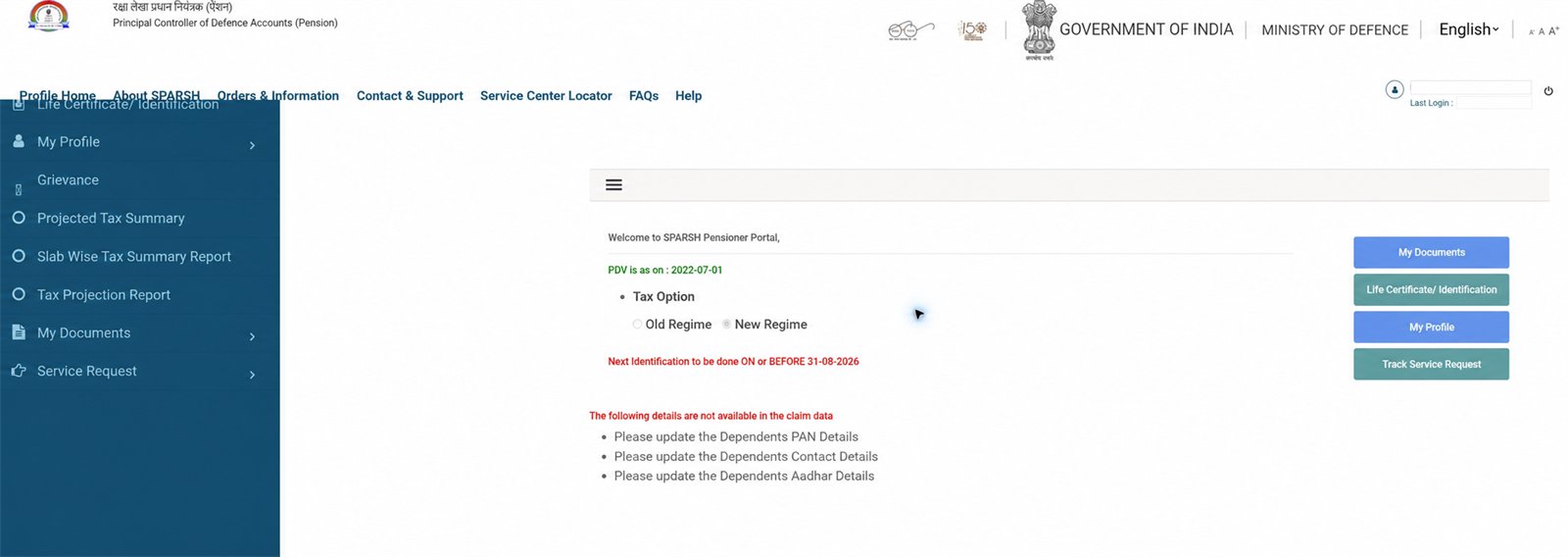
1 Start at Profile Home
The dashboard shows your tax option, next identification date, missing dependent details and shortcuts to My Documents, Life Certificate, My Profile and Track Service Request.
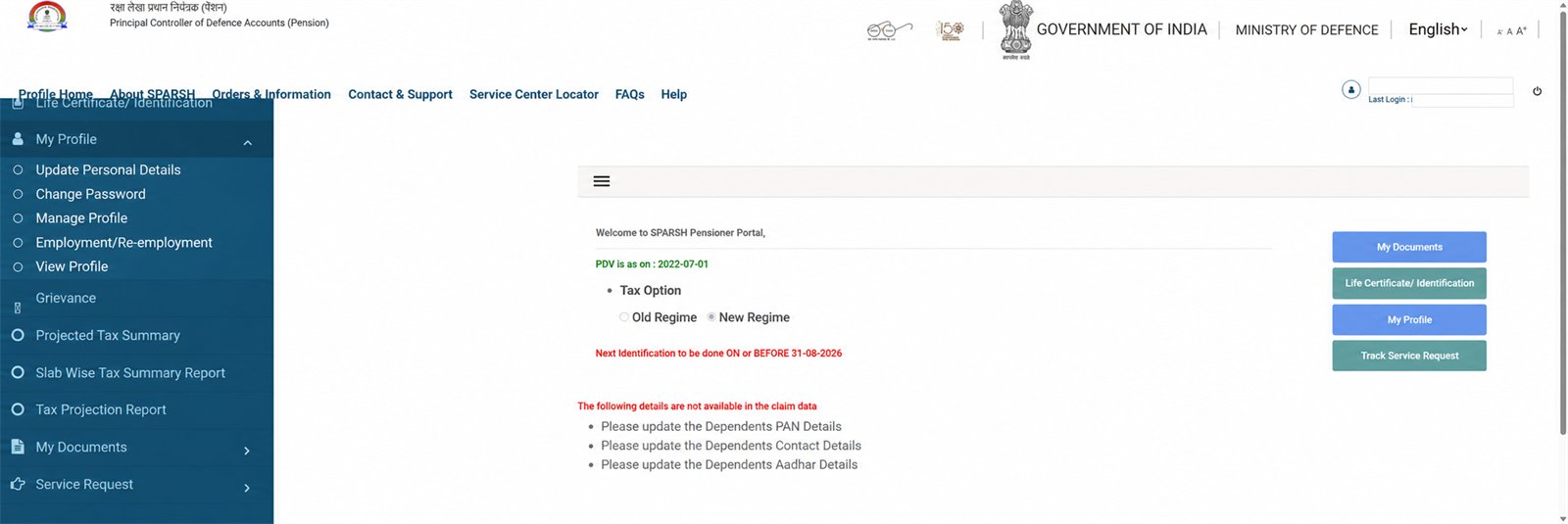
2 My Profile
Use this menu for Update Personal Details, Change Password, Manage Profile, Employment/Re-employment and View Profile. Review a submitted change carefully before final confirmation.
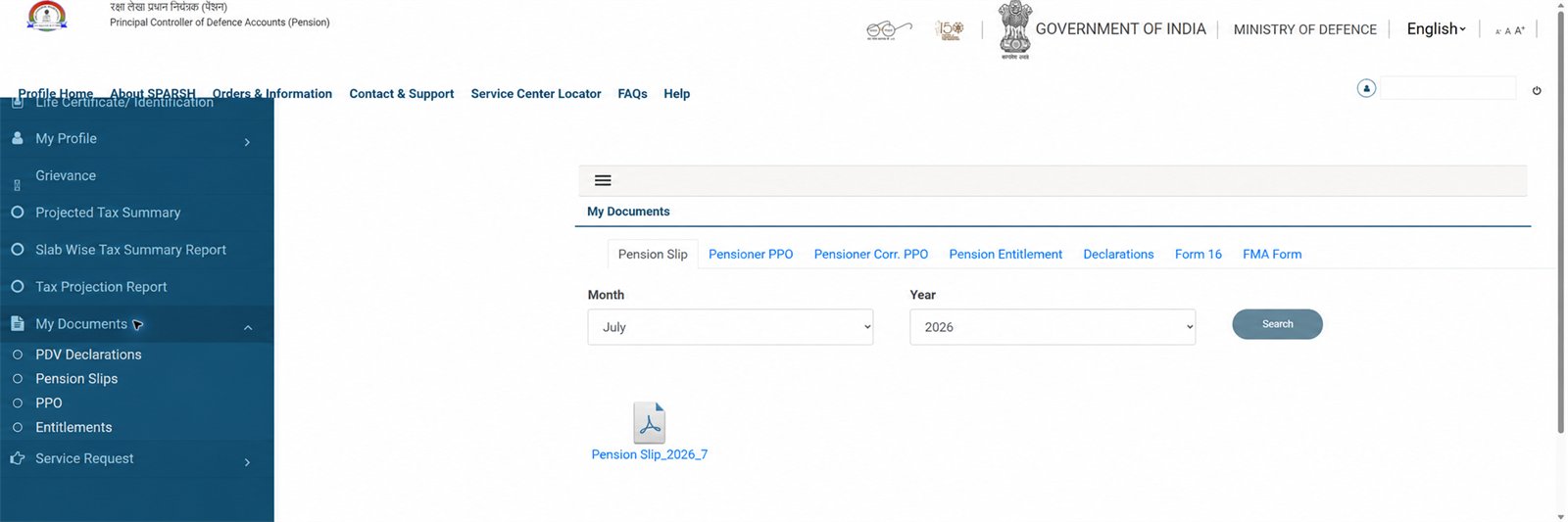
3 My Documents
Download monthly Pension Slips; open Pensioner PPO and Corr. PPO; check Pension Entitlement, Declarations, Form 16 and FMA Form. Select month/year and search for the required slip.
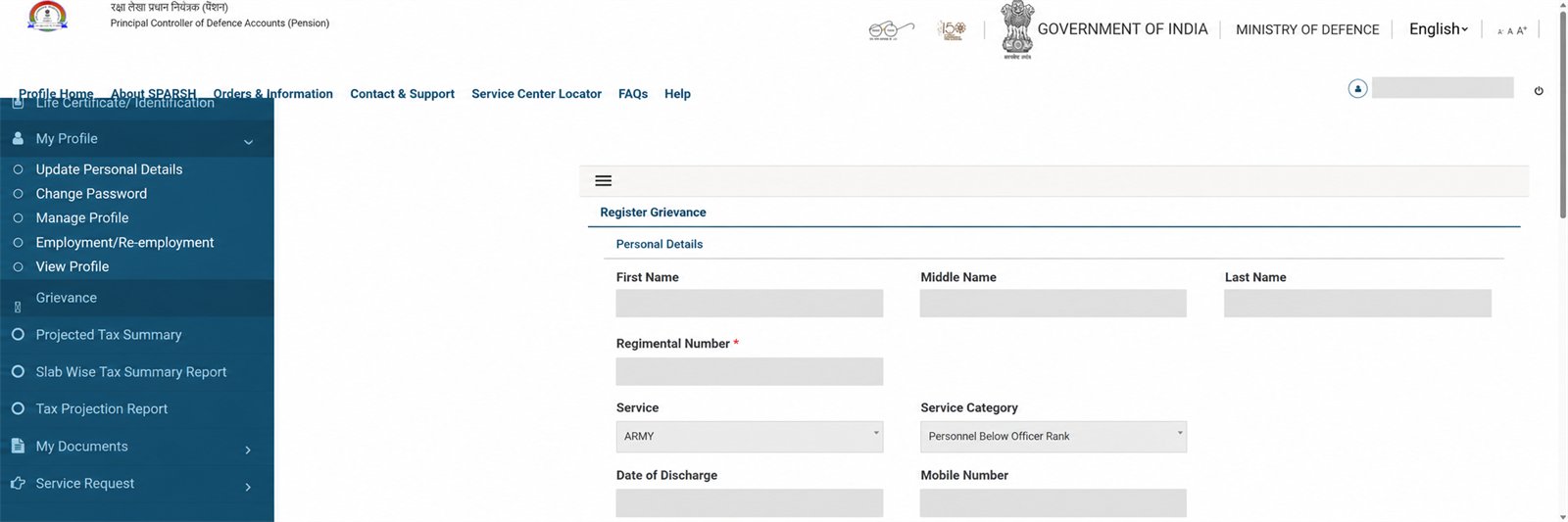
4 Register a grievance
Open Grievance, choose the category and issue—Elements of Pension, Elements not sanctioned, or Deduction—write a clear comment and attach one permitted file if needed. Do not submit twice; note the grievance number and track it.
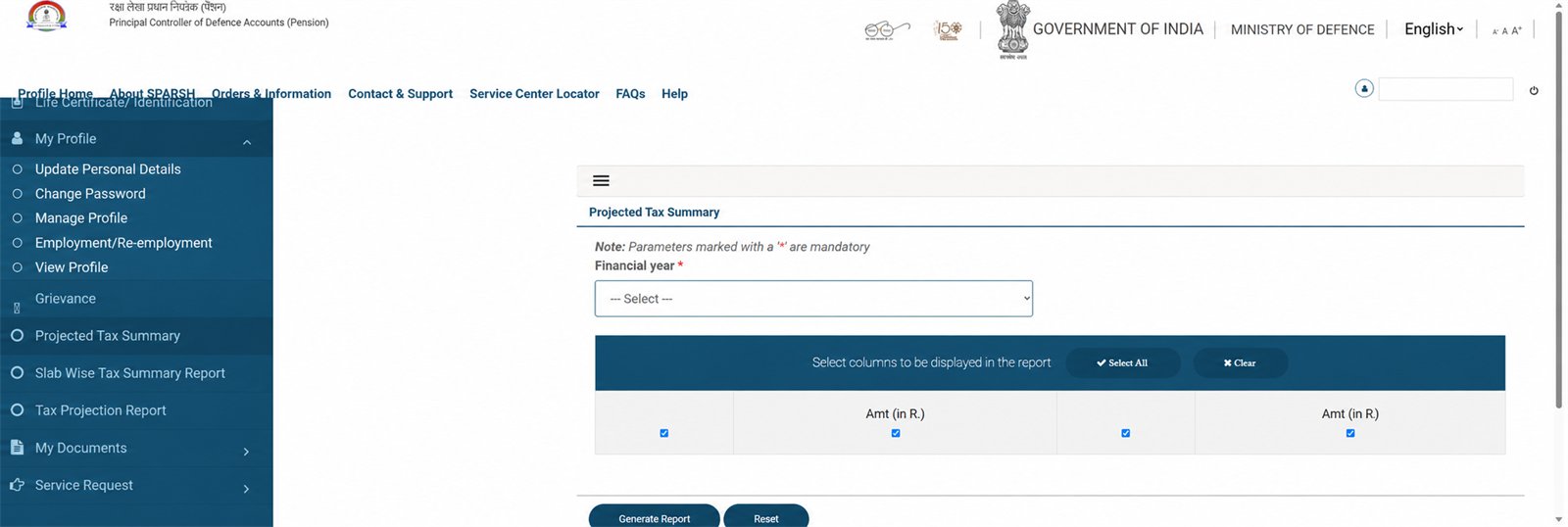
5 Projected Tax Summary
Select the financial year, keep the required report columns selected and choose Generate Report. The neighbouring menus provide slab-wise and tax-projection reports.
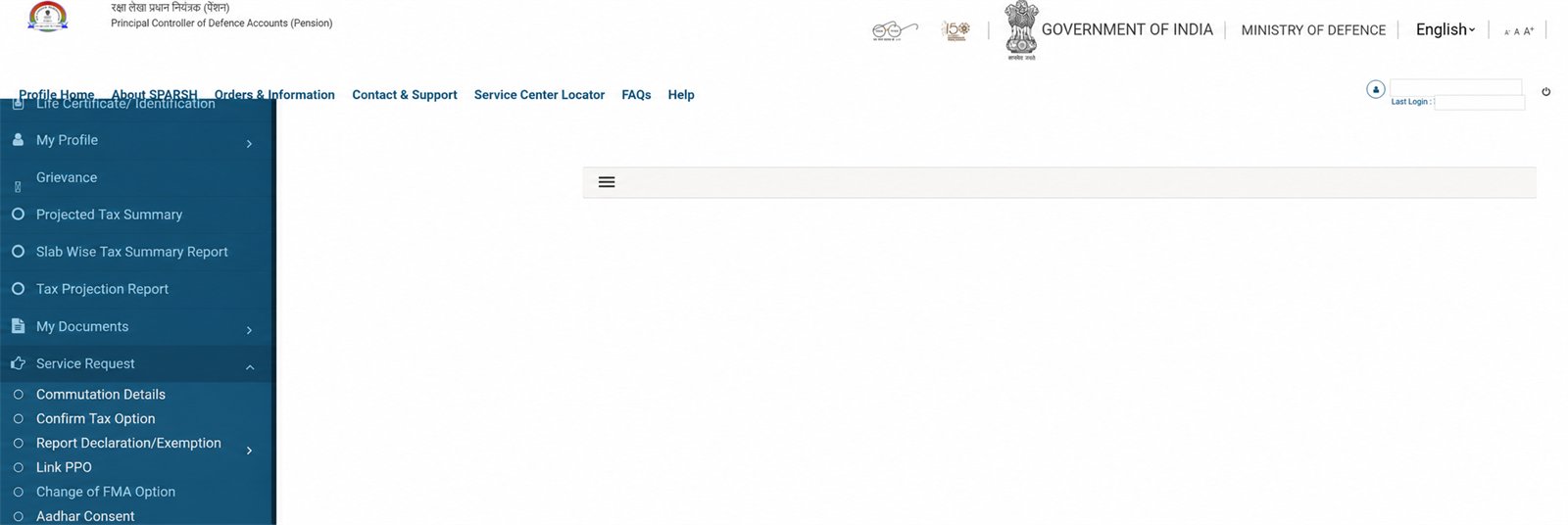
6 Service Request menu
This menu includes Commutation Details, Confirm Tax Option, Report Declaration/Exemption, Link PPO, Change of FMA Option, Aadhaar Consent, Pensioner Timeline and Income-tax Rebate. Use only the request that matches your case.
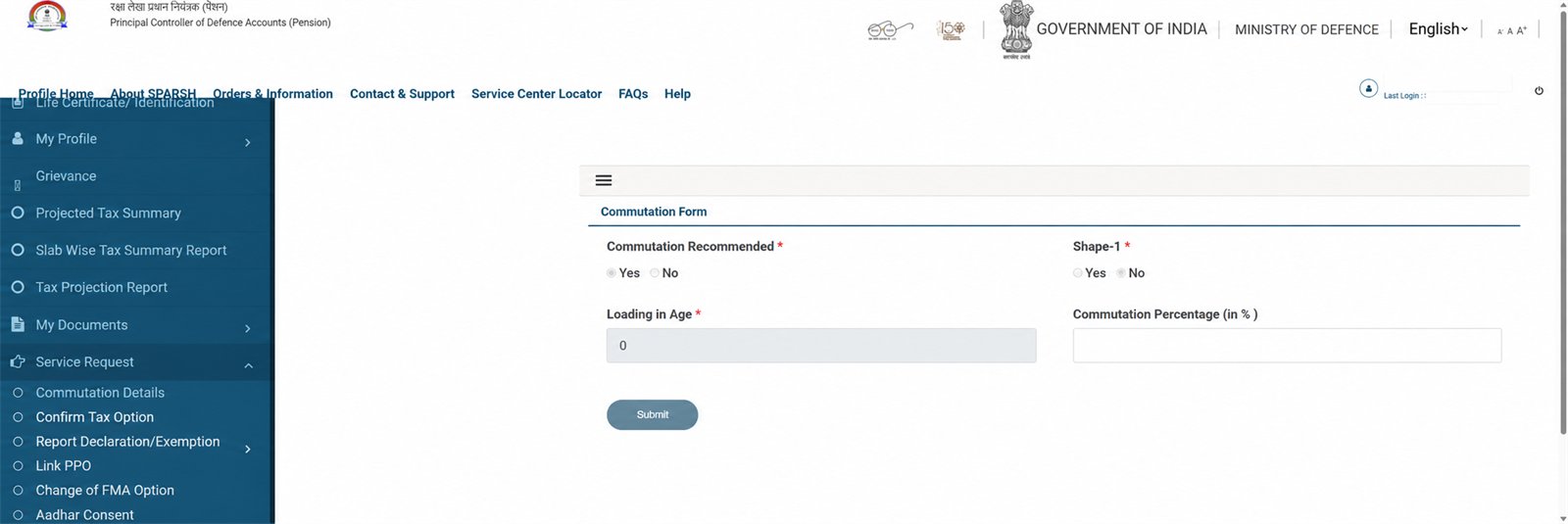
7 Commutation Details
Open Service Request → Commutation Details. Review the recommendation and Shape-1 status, then enter the permitted commutation percentage only if the form is active. This is an account request—not the same as our estimate calculator.
What to add next
- Update Mobile/Personal Details guide—screen sequence plus document checklist.
- Track grievance/service request—status meanings and escalation route.
- Life Certificate account status—where the next identification date appears.
- FMA option and employment declaration—separate guides because these affect pension processing.
Privacy and safety
Never publish or send a screen containing name, PPO/user ID, regimental number, mobile, email, Aadhaar, bank details, pension amount, OTP or password. Sainik Desk does not access accounts or submit requests. Use the official portal or a listed SPARSH Service Centre.
Related: Reset password · Pension slip · PPO · Commutation calculator