SPARSH OTP not coming: forgot-password and login fix
Keep your SPARSH user ID and the registered mobile/email ready. Open only sparsh.defencepension.gov.in. The portal sends OTPs and the one-time/default password to the registered contact details.
These are real portal screenshots supplied by a pensioner. User ID and account-holder name have been permanently covered; no OTP or password is shown.
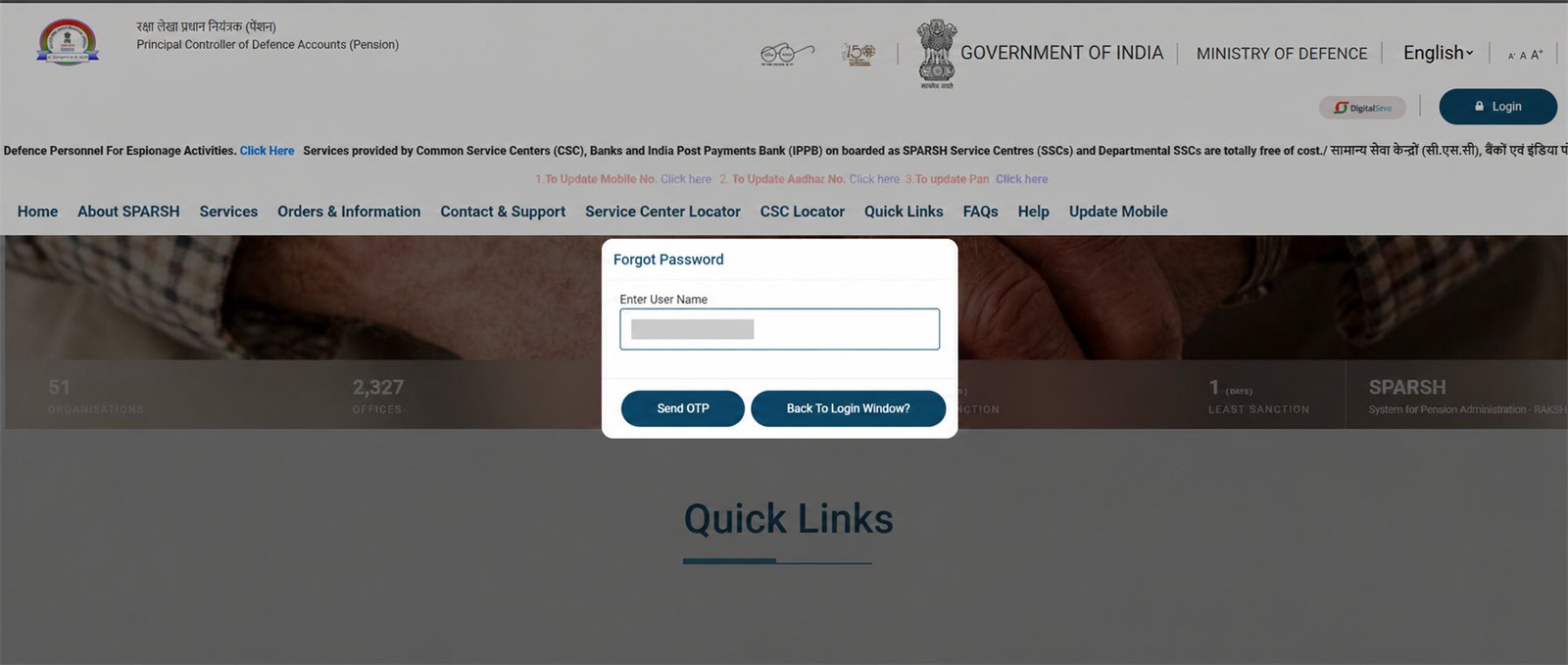
1 Enter user ID and tap Send OTP
On the login window choose Forgot Password, type your SPARSH user ID, then select Send OTP.
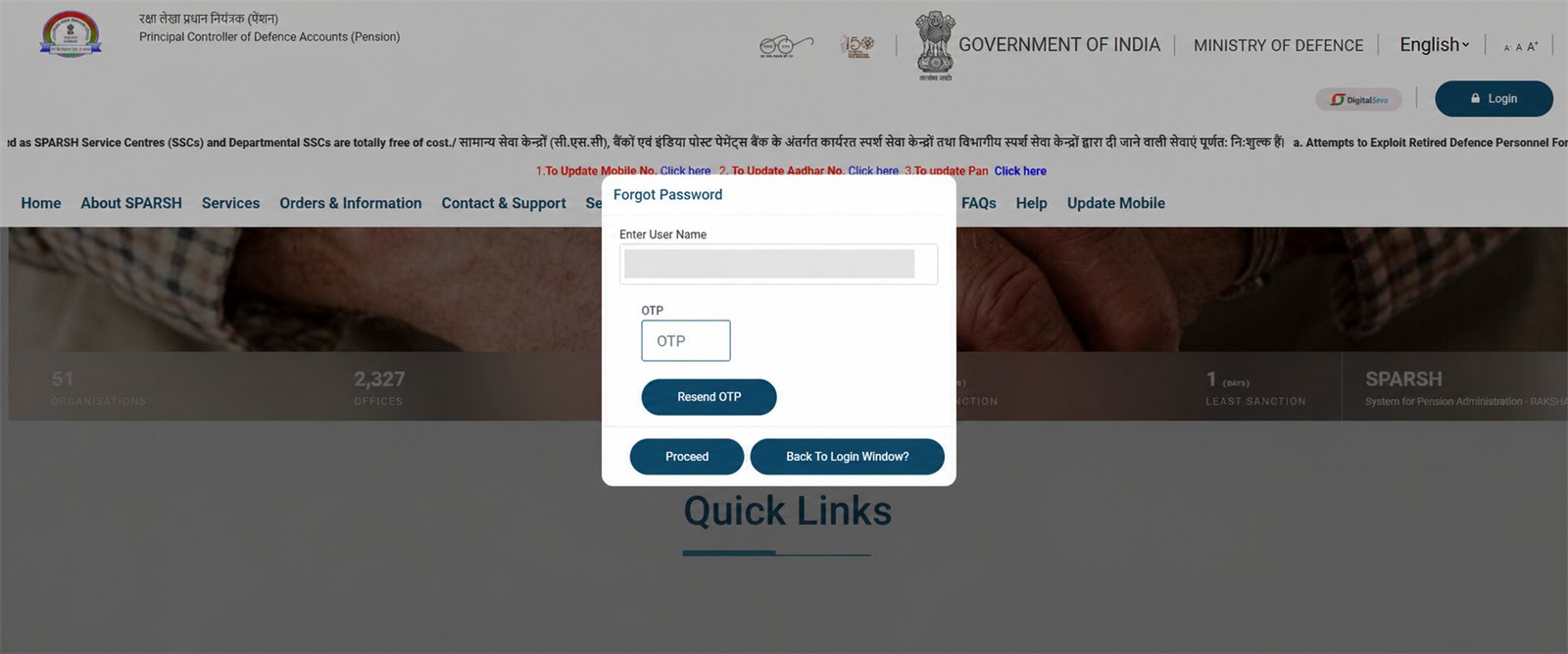
2 Enter OTP and proceed
Enter the OTP received on your registered mobile/email and choose Proceed. Use Resend OTP only if the first message does not arrive.
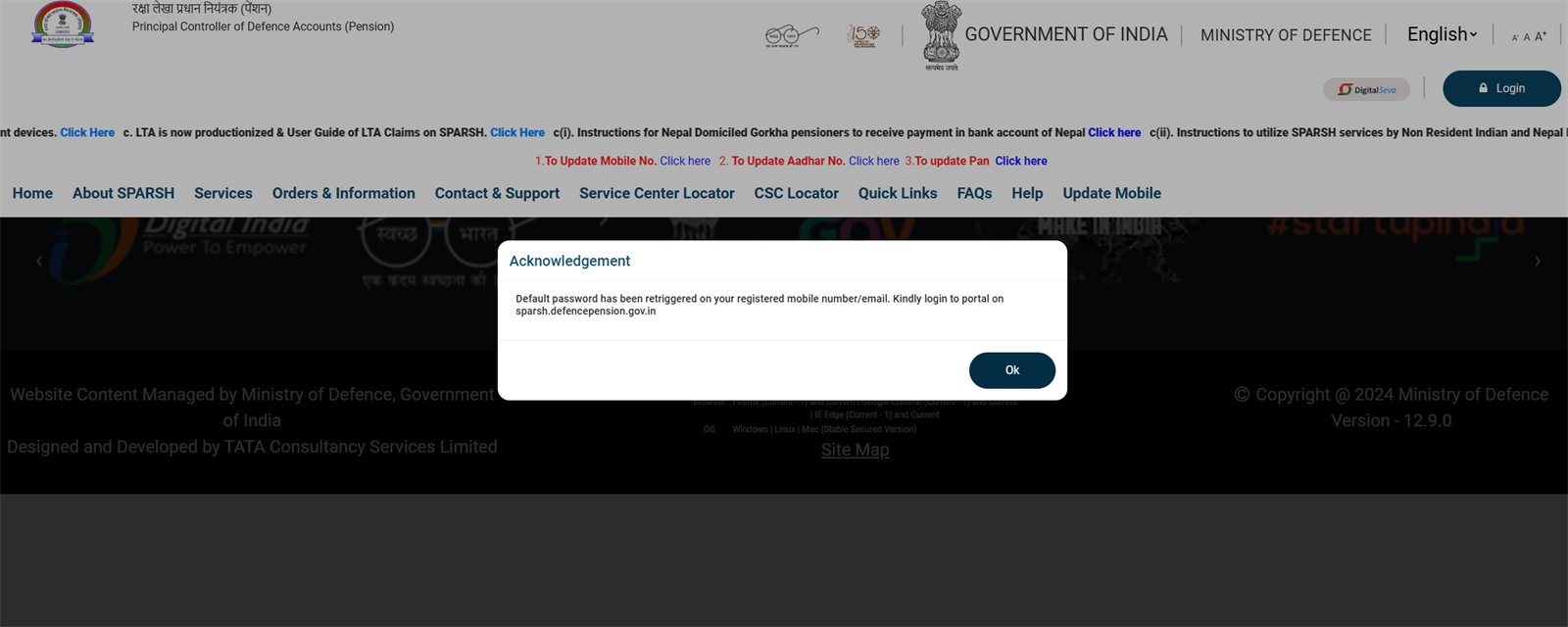
3 Check the acknowledgement
The portal confirms that a default/one-time password has been sent again to your registered mobile/email. Tap OK and return to login.
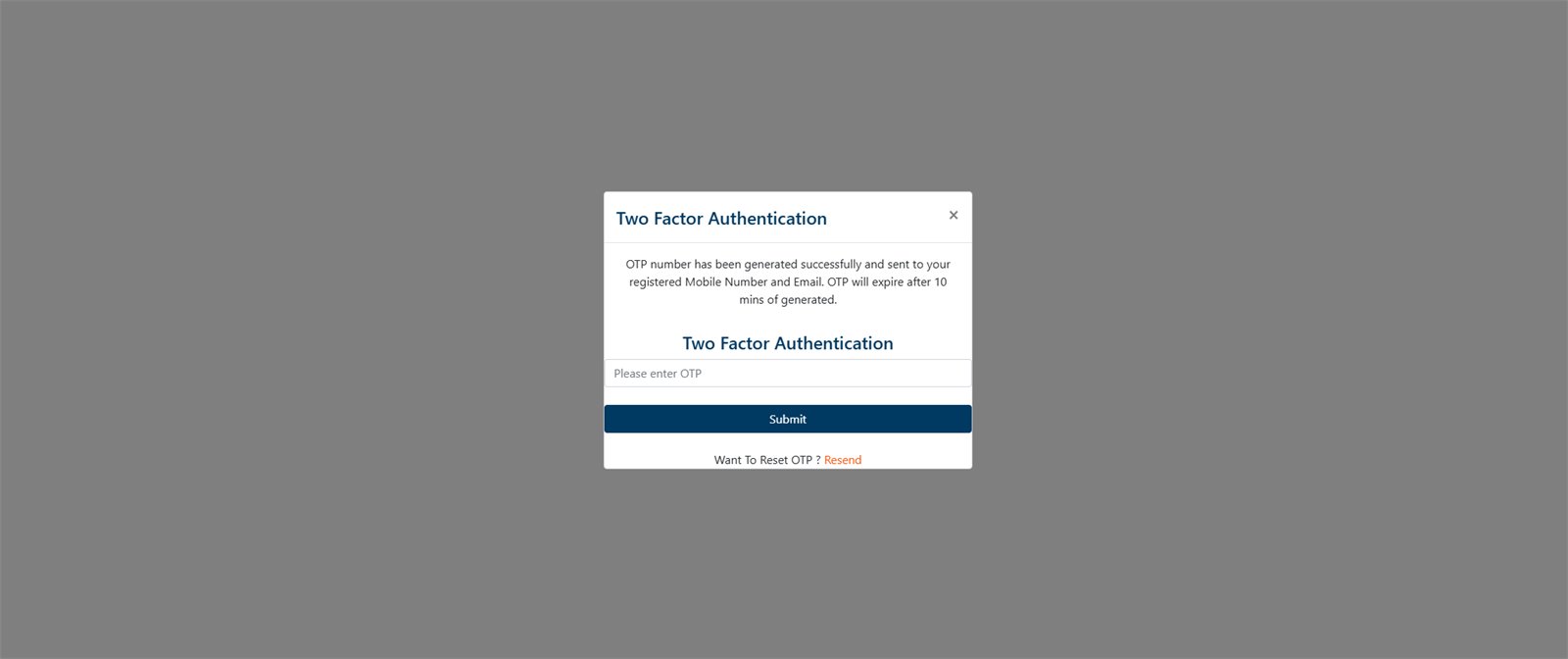
4 Log in, then complete 2FA
Use the one-time/default password to log in. Enter the fresh two-factor OTP and submit it within the 10-minute validity shown on screen.
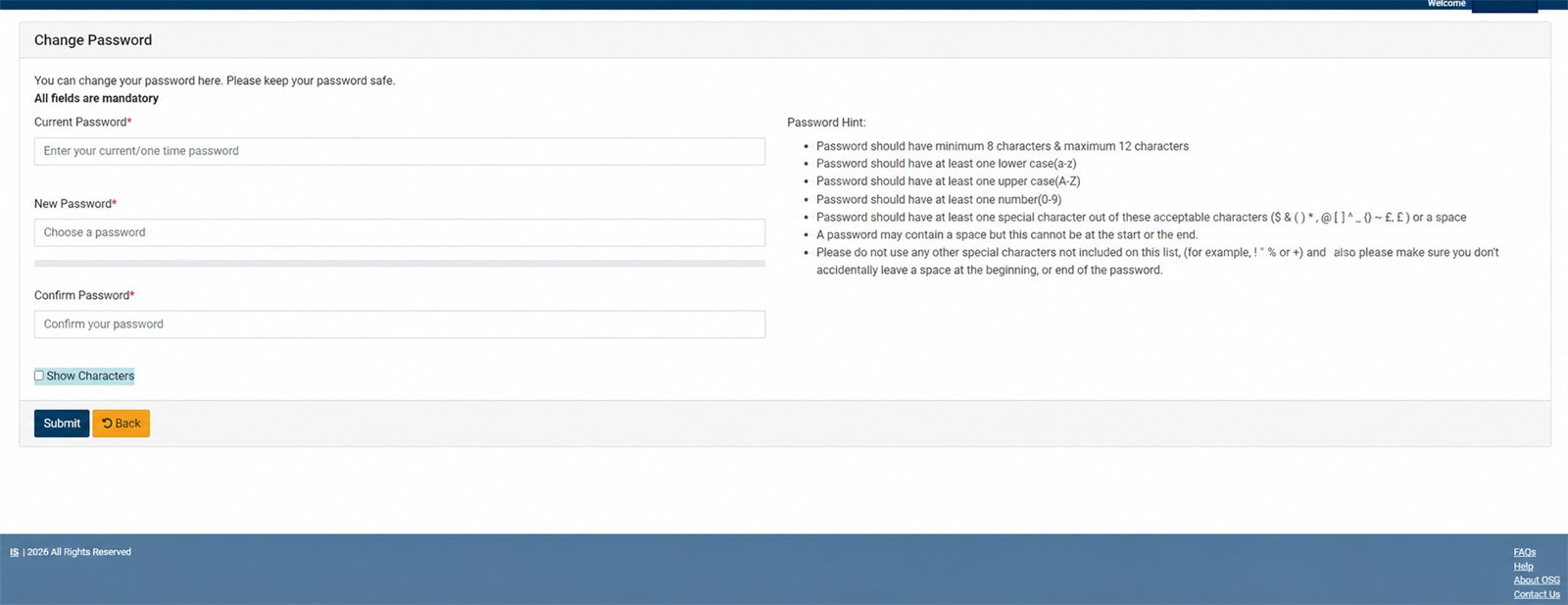
5 Create your new password
In Current Password, enter the one-time/default password. Then enter the same new password in New Password and Confirm Password. Follow the on-screen rule: 8–12 characters with lower-case, upper-case, a number and an allowed special character; no space at the beginning or end.
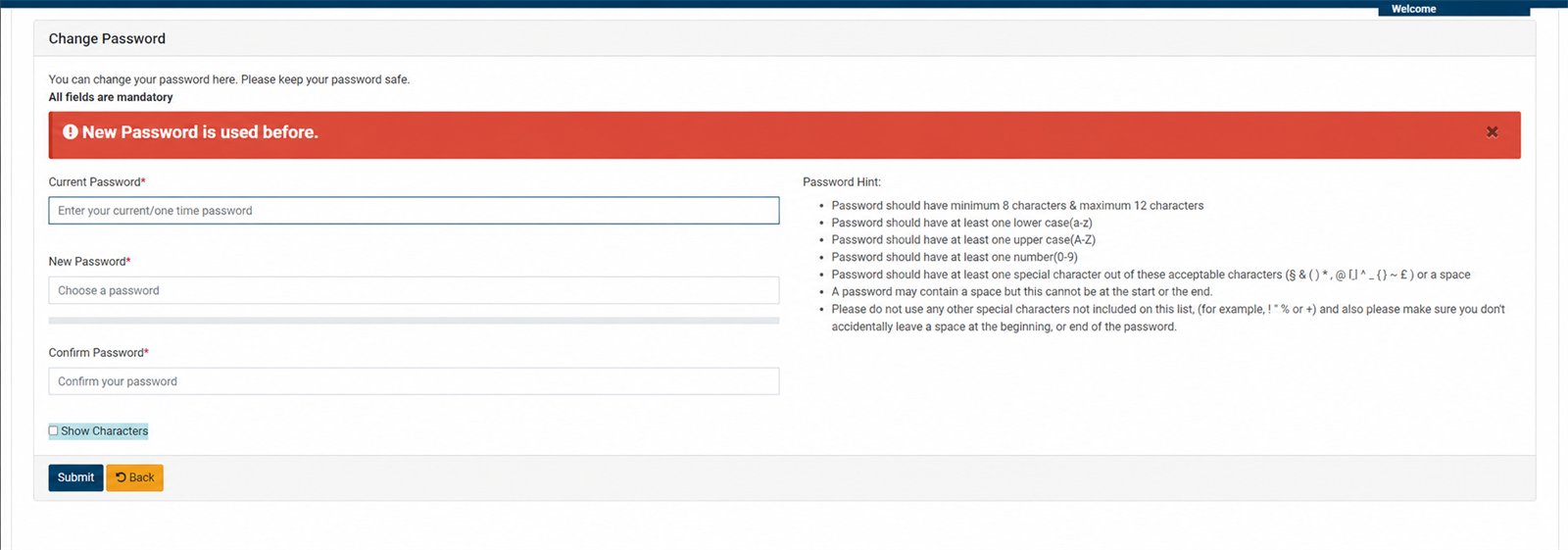
6 If “New Password is used before” appears
SPARSH does not accept that previously used password. Choose a genuinely new password that still follows the displayed rules, confirm it and submit again.
SPARSH OTP not coming: fix it in this order
First identify which message is missing. SPARSH can ask for a Forgot Password OTP, a fresh two-factor login OTP after the one-time password, or an Aadhaar authentication OTP in a separate identity workflow. An OTP from one step will not work in another.
- Stay on the same official screen. Confirm the user ID and, where shown, the masked mobile/email destination. Do not continue on a link received in a message.
- Wait a few minutes before one resend. Check SMS plus the registered email inbox, spam and promotions folders. After resending, enter only the newest OTP; an earlier code may no longer work.
- Do not generate codes repeatedly. Close duplicate SPARSH tabs. If the screen says the OTP has expired, start that step again and complete it within the displayed validity period.
- Retry the official portal cleanly. If the page froze or no acknowledgement appeared, reopen sparsh.defencepension.gov.in in a current browser and try once more. A temporary portal or SMS delay is possible; wait and retry later instead of sharing credentials with a helper.
- Wrong or inaccessible registered contact: an OTP cannot be diverted to a new number from the login box. Use the official SPARSH Update Mobile route; if it cannot verify you, open Contact & Support → SPARSH Near You → Service Center Locator.
OTP still not received—what to report
Use SPARSH's official Contact & Support route. Give the date/time, whether it was Forgot Password or login 2FA, the exact on-screen message and your grievance/reference number if one is issued. A redacted error screenshot can help, but remove the user ID, name, mobile, email, Aadhaar, PPO, bank details and every OTP/password. Never post those details publicly.
OTP arrived but is invalid
Use the newest code for the same screen that generated it, type it before the displayed expiry, and avoid leading/trailing spaces. If you requested another OTP, discard the older message. Restart the step once if the portal session expired.
Security warning
Never tell anyone your OTP, one-time password or new password—not even someone claiming to be from SPARSH. Do not send screenshots containing your user ID or name. Sainik Desk cannot reset an account; the action must happen on the official portal.
Related: Download pension slip · Download PPO · Life certificate guide