SPARSH mobile number and personal details
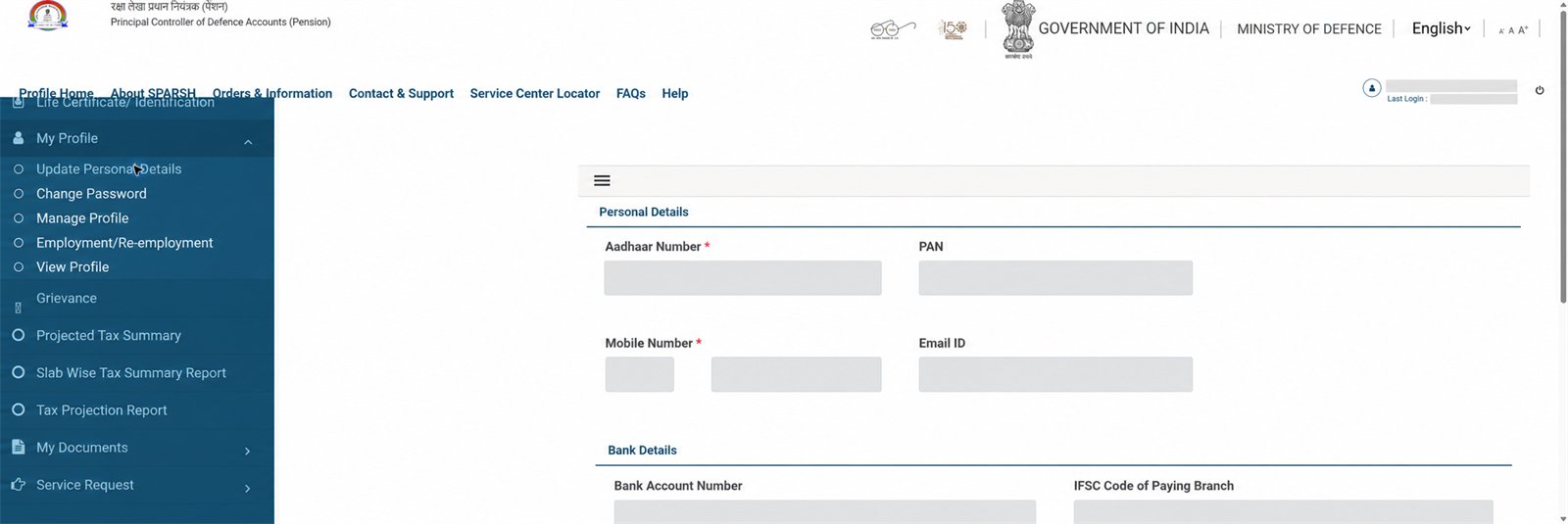
In the account screen checked by us, My Profile → Update Personal Details displayed Aadhaar, PAN, mobile, email and bank details as disabled/read-only fields. Do not assume that typing here will change them. Use the public Update Mobile route on the official SPARSH homepage or official support/Service Centre when editing is not available.
First verify what SPARSH currently holds
Log in and open My Profile → Update Personal Details. Check whether mobile and email are correct. Never share a screenshot of this page.
If the fields are editable
Enter only your own current details, review them and follow the portal’s OTP/document instructions. Stop before final submission if any field or supporting document is unclear.
If the fields are disabled, as in this screen
Return to the public SPARSH homepage and select Update Mobile. If that route cannot verify the old registered contact, use Contact & Support → SPARSH Near You → Service Center Locator.
Carry evidence to a Service Centre
Take the pensioner’s identity and pension documents requested by the official centre, plus the mobile to be registered. Confirm the exact checklist with the centre before travelling; requirements can change by case.
Verify after correction
Log in again, re-open Personal Details and confirm the new contact. Test Forgot Password only when needed—do not repeatedly generate OTPs.
Security
Never send Aadhaar, PAN, bank account, user ID, password or OTP over WhatsApp to an unknown helper. Use only sparsh.defencepension.gov.in or an official listed Service Centre.
Related: Forgot Password · Complete account guide